NPS部署
摘要
说明
- 第一次部署为19年还在校园时,使用阿里云Centos部署成功达到效果后就没有使用了,且还没有写技术文档
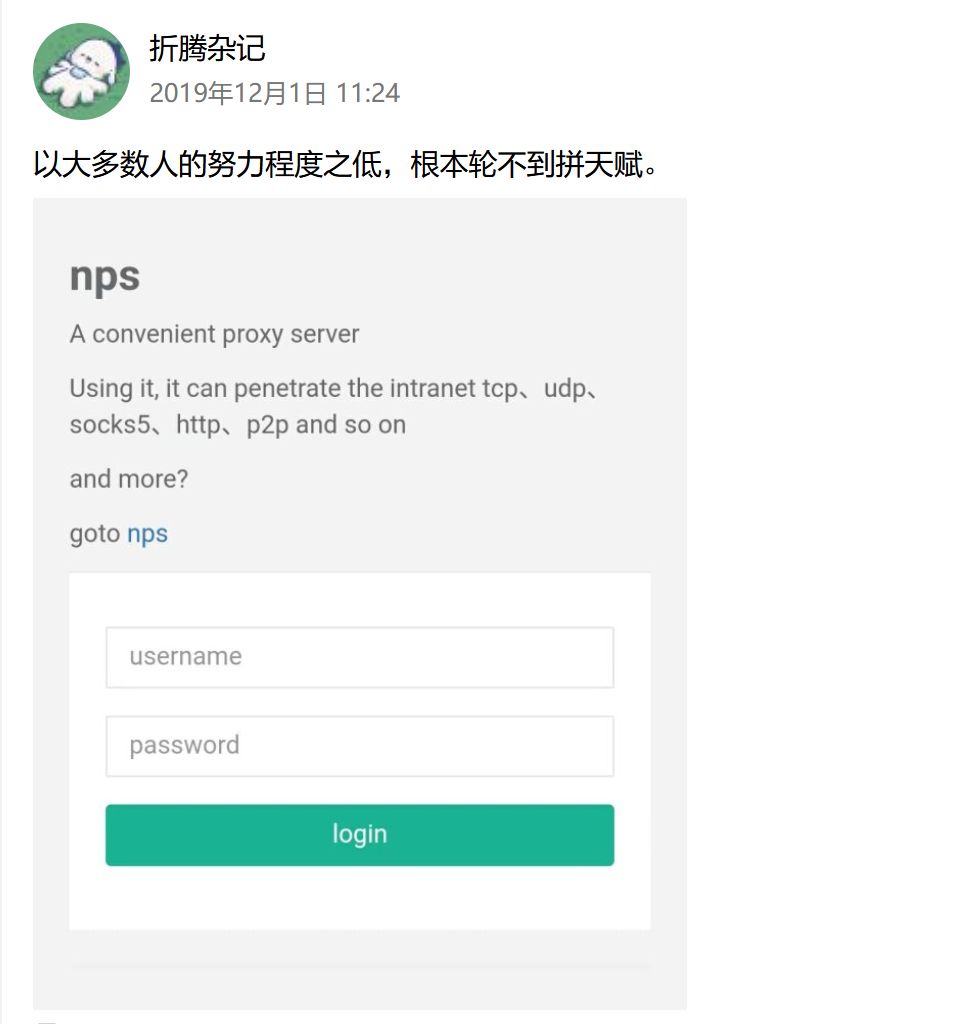
- 第二次部署为22年刚刚出来,已经有写技术文档的意识了,但写的还是不够细节
- 故第三次部署,会将其中遇到的问题及解决方式都描述出来,以便下次部署及维护
部署及下载
注意:报错/ect/nps/conf/nps.conf文件不存在,创建/etc/nps/conf,请把解压后的conf文件夹里面的文件都复制到/etc/nps/conf下,重启执行./nps install
编辑配置文件
#HTTP(S) 代理端口配置
http_proxy_ip=npc.lius.fun    #代理域名
http_proxy_port=8000          #域名代理http代理监听端口
https_proxy_port=4430         #域名代理https代理监听端口
https_just_proxy=true
#default https certificate setting
https_default_cert_file=/etc/nginx/cret/npc.lius.fun/npc.lius.fun.pem
https_default_key_file=/etc/nginx/cret/npc.lius.fun/npc.lius.fun.key

##服务器和客户端的连接方式及端口
bridge_type=tcp              #客户端与服务端连接方式kcp或tcp
bridge_port=8420             #客户端与服务端连接端口
bridge_ip=0.0.0.0
# Public password, which clients can use to connect to the server

#日志级别
#log level LevelEmergency->0 LevelAlert->1 LevelCritical->2 LevelError->3 LevelWarning->4 LevelNotice->5 LevelInformational->6 LevelDebug->7

log_level=7
log_path=/var/log/nps.log


#web管理端口配置
web_host=nps.lius.fun       #管理界面域名
web_username=admin          #管理账户
web_password=Admin@123      #管理密码
web_port = 8012             #管理端口
web_ip= 0.0.0.0             #IP
web_base_url=
web_open_ssl=true           #管理端使用HTTPS
web_cert_file=/etc/nginx/cret/nps.lius.fun/nps.lius.fun.pem
web_key_file=/etc/nginx/cret/nps.lius.fun/nps.lius.fun.key
[tag type="info"]官方版本很久没有维护了,存在越权漏洞。漏洞原理是利用伪造两个参数auth_key、timestamp来完成越权操作的,在这里我顺便也补充一下修复方式,
修复方式是注释掉auth_crypt_key,并修改auth_key的值为随机值,auth_key记得去掉注释,16位密码[/tag]
firewall、安全组放行端口,启动nps start,可能会出现报错- 安装使用0.26.10报错,
web_port=80,这项配置端口无论如何都启动不起来 - 使用yisier/nps成功启动后,nps端口都启动成功,但是管理界面访问
失败,需要关闭firewall防火墙
反向代理配置
server {
listen 80 ssl http2;       #使用80端口开启http2
server_name npc.lius.fun;  #管理域名
ssl_certificate  /etc/nginx/cret/npc.lius.fun/npc.lius.fun.pem;
ssl_certificate_key /etc/nginx/cret/npc.lius.fun/npc.lius.fun.key;
ssl_session_timeout 5m;
ssl_ciphers ECDHE-RSA-AES128-GCM-SHA256:ECDHE:ECDH:AES:HIGH:!NULL:!aNULL:!MD5:!ADH:!RC4;
ssl_protocols TLSv1 TLSv1.1 TLSv1.2;
ssl_prefer_server_ciphers on;
access_log  /var/log/nginx/b.access.log  main;   #开启代理日志
location / {
    proxy_set_header Host  $http_host;
    proxy_pass <https://127.0.0.1:80>;            #和https_proxy_port保持一致
}
}
记得安全组、防火墙放行